


|
|
At any time during a development cycle, you may need to change the set of files and directories in your view. Two factors determine which files and directories are in your view:
The set of elements available to your view. In a snapshot view, load rules in the config spec determine which elements are available. In a dynamic view, all elements in all VOBs active on your computer are available.
Within the set of available elements, the version-selection rules in the config spec select specific versions.
This section describes the following tasks:
Changing which elements are loaded into a snapshot view
Excluding elements
Activating or deactivating VOBs
Changing which versions the view selects
In the ClearCase Explorer Shortcut pane, click Toolbox. Then click Base ClearCase > Edit View Properties.
In the Edit View Properties dialog box, select the view and click Edit.
In the Properties dialog box, click the Load Rules tab.
On the Load Rules tab, click Edit Load Rules.
In the Choose Elements to Load dialog box, click Add to load another element into the view, or click Remove to unload a file or directory from the view.
Click OK.
ClearCase starts the update operation to match the modified config spec. For more information, see Under the Hood: What Happens When You Update a View.
ClearCase loads all directory elements recursively. If you want to load only a few elements from a given parent directory, you can use the VOB Namespace Browser to add each element separately. For each element you add, the VOB Namespace Browser creates a separate load rule in the config spec.
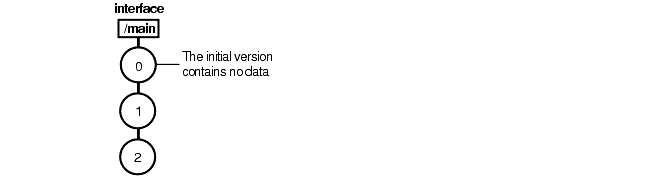
To exclude some elements, you can use an element rule in the config spec that selects an element's initial version on the main branch. For all ClearCase elements, the initial version on the main branch (illustrated in Figure 34) contains no data. (See Chapter 5, Working On a Team for a description of branches.)
Figure 34 Initial Version on the Main Branch
For example, to load all elements in the design VOB except elements below the interface directory, you can create a load rule that specifies the design VOB and an element rule that selects the initial, or empty, version of the interface directory (Figure 35). When you specify the initial version of the interface directory, the entire subtree below it is no longer selected by the config spec and is not loaded.
Figure 35 Excluding the interface Directory

In the ClearCase Explorer Shortcut pane, click Toolbox. Then click Base ClearCase > Edit View Properties.
In the Edit View Properties dialog box, select the view and click Edit.
In the Properties dialog box, click the Config Spec tab.
On the Config Spec tab, click Edit to make the rules on the Config Spec tab editable.
As illustrated in Figure 35, type an element rule specifying the initial version of the element you want to exclude by using the following syntax:
The path must start from the VOB directory.
In the Properties dialog box, click OK.
Activating a VOB on your computer makes its files and directories available to your dynamic views (see To Activate VOBs). Deactivating a VOB frees your computer's resources.
In the system taskbar, click Start. Then click Programs > Rational ClearCase Administration > Unmount VOB.
In the Unmount dialog box, select one or more VOBs.
Click Unmount.
Before completing these steps, refer to Working on Branches. Depending on your organization's development policies, your view's version-selection rules may select versions on a specific branch.
In the ClearCase Explorer Shortcut pane, click Toolbox. Then click Base ClearCase > Edit View Properties.
In the Edit View Properties dialog box, select the view and click Edit.
In the Properties dialog box, click the Config Spec tab.
On the Config Spec tab, click Edit. Modify the version-selection rules either by creating your own rules or using the Windows clipboard to paste a set of rules into the config spec.
To learn more about version-selection rules, see the config_spec reference page in the Command Reference or to Managing Software Projects.
|
|
Feedback on the documentation in this site? We welcome any comments!
Copyright © 2001 by Rational Software Corporation. All rights reserved. |
