


|
|
After you check out a file, you do not need to use ClearCase until you're ready to check it in. However, you may want to use some ClearCase tools for the following tasks:
Viewing an element's history
Comparing versions of elements
Tracking checked-out versions
Viewing an activity's change set
Moving versions to a different activity
The History Browser displays the history of an element's modifications, including version-creation comments (entered when someone checks out or checks in an element).
In a view, enter this command:
cleartool lshistory -graphical pathname
You can use this command from a snapshot view whether or not the element specified by pathname is loaded into the view.
As you modify source files, you may want to compare versions to answer such questions as these:
What changes have I made in my checked-out version?
How does my checked-out version differ from a particular historical version or from the version that another developer is using?
In a view, enter this command:
cleartool diff -graphical -predecessor pathname
The -diff_format option causes both the headers and differences to be reported in the style of the UNIX diff utility, writing a list of the changes necessary to convert the first file being compared into the second file.
In a shell, enter this command:
cleartool lsvtree -graphical pathname
In the Version Tree Browser, select a version.
Click Version > Diff > Selected vs. Other.
In the Enter other versions dialog box, select other versions and click OK.
If you prefer to use the command line:
Use the cleartool diff command with a version-extended pathname. For example, to compare the current version of prog.c with version 4:
You can use the lsvtree and diff commands from a snapshot view whether or not the element specified by pathname is loaded into the view. For more information, see the diff and pathnames_ccase reference pages in the Command Reference.
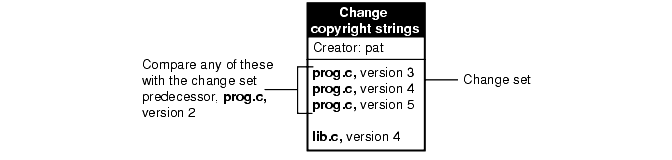
A change set lists all versions you have created while working on a specific activity. In some cases, you create more than one version of an element for a specific activity. For example, for the activity Change copyright strings you check in a version of prog.c and realize later that you missed a string in the file. You then set your view to the activity Change copyright strings, check out prog.c, modify the string, and check in the file.
To see the changes you have made to an element while working on an activity, you can compare a version in the activity's change set with the version that immediately precedes the change set. In Figure 18, the change set predecessor of prog.c is version 2. You can compare any version of prog.c in the change set with version 2.
Figure 18 Compare with Change Set Predecessor
Display an activity's properties sheet. For example:
Type clearprojexp.
In Project Explorer, navigate to the stream that contains the activity.
Right-click the activity and click Properties.
In the activity's properties sheet, click the Change Set tab.
Right-click the version you want to compare, and, on the shortcut menu, click Compare with Change Set Predecessor.
Depending on how you work, you may forget exactly how many and which files are checked out. To list all the files and directories you currently have checked out to your view, access the view and use the lscheckout command with the following options:
cleartool lscheckout -cview -me -avobs
For more information, see the lscheckout reference page in the Command Reference.
You can see which versions are in an activity's change set from ClearQuest, Project Explorer, or with cleartool lsactivity.
Use a query to find the activity. For example, to use MyToDoList:
Type the following command:
clearquest
In the left pane, click Workspace > Public Queries > UCMUserQueries and run the MyToDoList query.
ClearQuest displays MyToDoList list in the Query builder pane.
In the Query builder pane, select a record.
In the Record form pane, display the Change Set list. Your project manager determines the location of this list when she designs the record's record type.
Enter the following command:
In Project Explorer, select a stream and right-click an activity in the stream; on the shortcut menu, click Properties.
In the Properties dialog box, click the Change Set tab.
To see the change sets for all activities in your stream, enter the following command from your development view:
cleartool lsactivity -long -cview
To see the change set for the currently set activity only, enter the following command from your development view:
cleartool lsactivity -long -cact
The lsactivity output provides the ClearCase activity ID and versions in the change set. For example:
In a project that is enabled for ClearQuest, the ClearQuest record ID is the same as the ClearCase activity ID.
If you assign one or more versions to the wrong activity or if you create new activities to better represent your work, you can assign the versions to a different activity that is in your stream.
Display an activity's change set. (For more information, see Viewing an Activity's Change Set.)
On the Change Set tab, select one or more elements.
Right-click a selected element, and on the shortcut menu, click Move to Activity.
Display an activity's change set in ClearQuest. For more information, see To View an Activity's Change Set from ClearQuest.
Select an element from the Change Set list.
Right-click the element, and on the shortcut menu, click Move to Activity.
Follow the ClearCase prompts.
|
|
Feedback on the documentation in this site? We welcome any comments!
Copyright © 2001 by Rational Software Corporation. All rights reserved. |
