


|
|
After you prepare your development view (see Preparing Your Development View), you can start the rebase operation. By default, you rebase your development stream either to baselines recommended by the parent stream or to baselines created by the parent. Typically, these recommended baselines are created by other streams in the project.
To start the rebase operation, enter the following command from your development view:
The Rebase Stream Preview dialog box opens (Figure 26), showing the name of the stream you are using.
Figure 26 Rebase Stream Preview Dialog Box
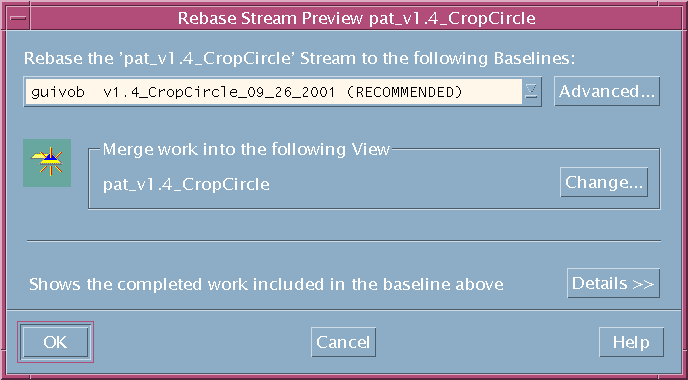
By default, the Rebase Stream Preview dialog box presents the parent stream recommended baseline.
You can also do the following in the Rebase Stream Preview dialog box:
Verify that the dialog box displays your development view under Merge work into the following view. If you attached multiple views to your development stream, click Change and choose one view to use for the rebase operation.
You cannot deliver or rebase from other views attached to the development stream until you complete the operation. However, you can check out, check in, and run most other ClearCase commands.
To see the changes that will be available in your development stream after rebasing to the displayed baseline, click Details. The dialog box expands to show the list of activities in the baseline. To see more information about an activity, select it and click Properties.
In the expanded area, select Show integration activities to see the baseline's integration activities. An integration activity records a change set for a deliver or rebase operation.
To continue the rebase operation, click OK. To rebase to baselines other than recommended, see Rebasing to Baselines Other Than Recommended.
The rules for rebasing to baselines other than recommended are different for integration streams and development streams. For an integration stream, you can only rebase to baselines from streams in other projects. The rules differ slightly for modifiable and non-modifiable components.
For a development stream, you can rebase to baselines other than recommended if the baselines chosen do not cause your stream to strand changes. If you make changes in a development stream that is based on the stream's current foundation baseline, rebasing to some baselines in the project can cause the changes to be invalid. Rebasing to these baselines would strand your changes and is therefore not allowed. If you observe this restriction, you can rebase to baselines from:
The parent stream
The parent stream's foundation
Other streams in the same project if the baselines were delivered to (and are contained in) your parent stream and contain the foundation baseline of your current stream.
The rebase restriction ensures that, when you deliver from your stream, you deliver only changes made in your stream and ensures that you do not strand changes in your stream's foundation baseline.
To rebase to baselines other than recommended, start the rebase operation (see To Start the Rebase Operation).
In the Rebase Stream Preview dialog box, click Advanced. In the Advanced Baseline Configuration dialog box, specify the list of baselines.
Click Add; in the Add Baselines dialog box, select baselines to be added to the list.
Select a listed baseline and do one of the following:
To remove it from the list, click Remove.
To modify the baseline, click Change. And, in the Change Baseline dialog box, select another baseline.
When you complete the list of baselines, click OK to quit the Advanced Baseline Configuration dialog box and click OK to continue the rebase operation.
In rebasing your work area to the recommended baseline, Rational ClearCase takes the following actions:
It changes your development stream's configuration to select the new recommended baseline. The stream's configuration continues to select any activities created in the development stream (Figure 27).
For development views that are snapshot views, it starts an update operation to copy versions in the new baseline into your view.
If other snapshot views are attached to your development stream, you must update them so that they contain the changes in the stream. Development views that are dynamic views show versions in the new baseline without requiring an update operation.
Figure 27 Development Work Area After Rebasing

As it rebases your development work area, ClearCase displays its progress in a clearmrgman window.
You can stop the rebase operation temporarily by clicking Cancel in the clearmrgman window. To resume the operation, type this command from your development view:
cleartool rebase -resume -graphical
For any version you modify in your development stream, if another team member has modified and delivered a version of the same element, you must merge when you rebase to a baseline that contains the delivered version.
As part of working on an activity, you check in a version of prog.c from your development view.
Another developer checks in and delivers a new version of prog.c to the parent stream.
Your project manager adds the new version to the recommended baseline.
You rebase your development stream. As part of the rebase operation, you must merge the other developer's version into your development stream.
As it does during the deliver operation, ClearCase merges all nonconflicting differences. If versions in the baseline contain changes that conflict with the corresponding versions in your development work area, ClearCase prompts you to start Diff Merge so that you can resolve the conflicts. For information on using Diff Merge to resolve conflicting differences, see Using Diff Merge to Resolve Differences.
|
|
Feedback on the documentation in this site? We welcome any comments!
Copyright © 2001 by Rational Software Corporation. All rights reserved. |
