


|
|
NOTE: If your project uses Rational ClearCase MultiSite to share source data with developers in other geographical locations, and if the project's streams are mastered at a different site, you do not merge versions. For more information, see MultiSite: Posting Work to Deliver.
After selecting activities, click OK in the Deliver Preview dialog box to start merging versions in your development view with versions in the integration view. As it merges files and directories, ClearCase displays its progress in a ClearCase UCM Deliver window.
For each new version delivered to the integration view, ClearCase merges all nonconflicting differences. To see progress of the merge, click Details and an expansion box lists the versions in the merge (Figure 22).
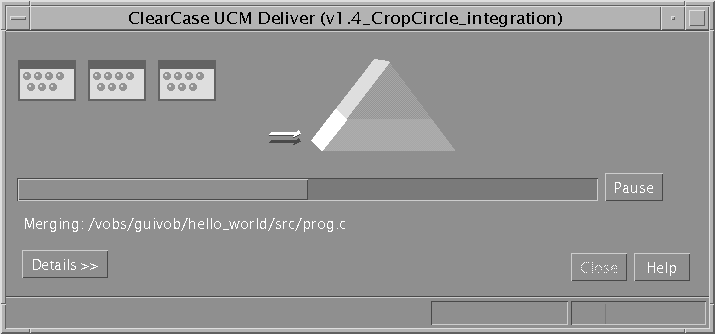
As it merges versions, ClearCase changes the value in the Merged column of the Details expansion box to Yes.
If versions in your development view contain changes that conflict with the corresponding versions in the integration view, the value in the Merged column shows No. For each version that has conflicts, a Deliver from Stream dialog box appears (Figure 23), giving options to handle the version.
Figure 23 Merge Conflict Options

To merge a version that contains merge conflicts, select the version and click Start the Diff Merge tool (xmerge) for this element and click OK. To apply the same option to all remaining files with conflicts, click OK to All. ClearCase starts Diff Merge, a tool that helps you resolve conflicting differences. (clearmrgman is the main window of the Diff Merge, a ClearCase tool used for merging files and directories.)
ClearCase allows developers to deliver work concurrently. However, if another team member's deliver operation has checked out an element, you cannot deliver any changes to that element until that deliver operation is completed or canceled.
When delivering activities, ClearCase follows a specific order:
It evaluates each directory sequentially, checking out and merging changes to the target stream when needed. If it encounters a reserved directory checkout in the target stream, it stops the deliver operation (but does not undo any successful directory merges).
It then attempts to check out each element that requires a merge. If it encounters an element that it cannot check out (for example because another team member's deliver operation has checked out the element), it skips the element and attempts to check out the remaining elements.
If it is unable to check out an element, it does not proceed to the following step. In this case, you have two options:
Wait until the other developer completes or cancels her deliver operation, and then restart your deliver operation. Note, however, that with a deliver operation in progress, any new versions you create in your development stream are not delivered until the next deliver operation.
Undo your deliver operation and continue working on your activities. For more information, see To Undo a Deliver Operation.
After successfully checking out all elements, it merges each element, starting Diff Merge and requesting your input when it encounters merge conflicts.
ClearCase uses a special kind of activity, an integration activity, to keep track of the changes that occur during deliver and rebase operations. ClearCase creates the integration activity and adds versions to it; you do not need to create or maintain it. You may want to view an integration activity's properties to see exactly which versions were merged and created during a deliver or rebase operation. You can view an integration activity's properties from the Project Explorer; the activity name is of the form deliver.stream-name.date-stamp.
If your project uses the UCM-ClearQuest integration, ClearQuest links a UCM-enabled record based on the UCMUtilityActivity record type with the ClearCase activity. During the deliver operation or the rebase operation, the activity is in a state based on the Active state type. After the operation, ClearQuest moves the activity to a Complete state type.
As an intermediate step in the delivery, ClearCase creates a baseline in your development stream that identifies the state of your stream at the time of delivery. You can browse this baseline and its properties in the Component Browser. For more information, see Managing Software Projects.
When Diff Merge starts, it indicates that it has resolved all nonconflicting differences. Then, it highlights the first unresolved difference (Figure 24).

In Diff Merge, compare the differences in the contributor panes and click the numbered button on the navigation toolbar that corresponds to the contributor pane number containing the resolution you prefer.
For example, in Figure 24, clicking 2 moves the difference region in contributor pane 2 to the results pane.
In some cases, you can click more than one numbered button to include changes from multiple contributor panes. In addition, after you select a contributor to resolve the difference, you can edit the results pane directly.
Click Navigate > Next Unresolved Difference.
Repeat Step 1 and Step 2 until you have resolved all unresolved differences.
Click File > Save and then click File > Exit.
NOTE: For more information on using Diff Merge, choose a command from the Diff Merge Help menu.
After you exit Diff Merge, ClearCase continues merging the versions in your activities.
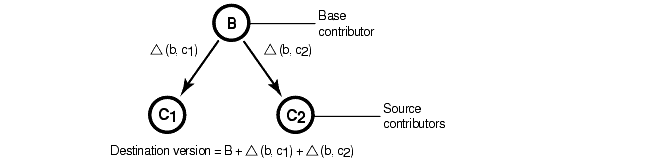
A merge combines the contents of two or more versions into a single new version. During a deliver operation, the ClearCase merge algorithm involves the following versions:
The source contributors: one version from your development stream and one version from the target stream.
The base contributor: the common ancestor of the source versions.
The destination version: the merge output, which becomes a new version in the target stream.
As illustrated in Figure 25, ClearCase starts with the base contributor and adds changes that are present in the source contributors.
Figure 25 ClearCase Merge Algorithm
If the two source contributors contain conflicting changes (for example, if each contains a line that is different from the base contributor), ClearCase starts Diff Merge so you can choose which change to add to the destination version.
If you have a binary file in any of your activities when you perform the deliver operation, and your organization does not have a type manager for that file type, ClearCase generates an error when it encounters the binary file during the delivery. The error occurs because there is no type manager that can merge the version of the file in your development stream with the version of the file in the integration stream. Your project manager can overcome this problem by creating a special element type for the binary file type and associating that element type with the binary file in the VOB. This special element type can tell the ClearCase system not to attempt merging the file. For more information, see Managing Software Projects.
You can stop the deliver operation temporarily by clicking Cancel in the clearmrgman dialog box. If you select Pause before merging files, the deliver operation stops after directories are merged (see Controlling Merge Behavior).
To resume the deliver operation, type cleartool deliver -resume -graphical from your development view.
|
|
Feedback on the documentation in this site? We welcome any comments!
Copyright © 2001 by Rational Software Corporation. All rights reserved. |
