


|
|
You can add files or directories to source control (version control) at any time during the development cycle (see Elements, Components, and Baselines).
You can add view-private files and directories to source control or make placeholders for nonexistent files and directories. Do the following:
In your development view, set an activity (see Setting Your View to an Activity).
Change to the parent directory under which you want to add files and directories to source control.
For snapshot views, the path from which you add to source control does not need to be loaded. However, it must match the VOB namespace.
Check out the parent directory element by entering this command:
cleartool checkout -nc directory-name
We suggest using the -nc option because Rational ClearCase appends appropriate comments when you modify directory elements.
Do one of the following:
To add a directory to source control, enter this command in the following format:
cleartool mkdir directory-name
To add a file to source control, enter this command in the following format:
To make placeholders for nonexistent objects, enter one of these commands in the following format:
By default, when you add an element, it remains checked out. When you finish modifying the new elements, check them in. Elements that you add to a directory element are visible only in your view until you check in the directory.
For more information on the mkelem command, see Under the Hood: What Happens When You Add a File or Directory to Source Control and the mkelem reference page in the Command Reference.
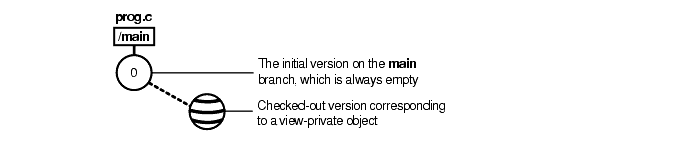
The mkelem command always creates an element and initializes its version tree by creating a single branch (named main) and a single, empty version (version 0) on that branch. The following arguments for the mkelem command determine optional ClearCase behavior:
Using mkelem with no arguments checks out the element. Any view-private data that corresponds to the element pathname remains in your view only and is added to version 1 in the VOB when you check in (Figure 28).
Using mkelem -ci checks in the element, using any existing view-private data that corresponds to the element pathname as the content for version 1. Your view's config spec determines the branch on which ClearCase creates version 1.
Using mkelem -nco suppresses automatic checkout; mkelem creates the new element, along with the main branch and version /main/0, but does not check it out. If element-pathname exists, it is moved to a .keep file.
(Replicated VOBs only) Using mkelem -master assigns to your current replica mastership of all branches created during element creation. You will be able to create new versions on the branches.
Using mkelem without the -master option assigns mastership of a new branch to the VOB replica that masters the associated branch type. If this replica is not your current replica, you cannot create new versions on the branch.
Other views do not see the element until you check in the element's parent directories and check in the file or directory.
If you're adding a large number of files and directories to source control, use the clearfsimport command (or clearexport command) and clearimport command. For more information, see the clearfsimport and clearimport reference pages in the Command Reference.
|
|
Feedback on the documentation in this site? We welcome any comments!
Copyright © 2001 by Rational Software Corporation. All rights reserved. |
