


|
|
When your project uses UCM, your work as a software or information developer follows a cycle.
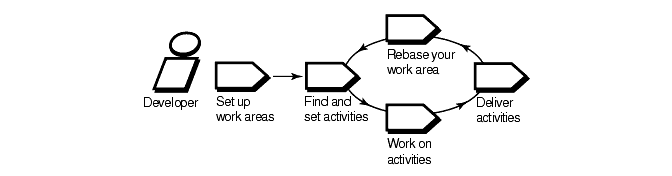
Your project manager creates a UCM object called a project. To access your project's source files, you set up work areas. As you modify source files, you use activities to organize and identify your work. Other developers on the project do not see your changes until you deliver your work to a shared work area. Periodically, the integrator for your project incorporates activities in the shared work area into baselines, which are sets of activities that represent a significant change. Then, you synchronize (or rebase) your work area with the activities in the new baseline.
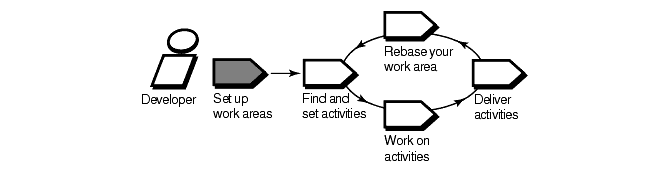
To contribute work to a UCM project, you must set up work areas. This involves joining the project and setting up two work areas:
A private work area for working on activities in isolation
A shared work area for testing the activities you deliver.
Each work area consists of a view and a stream. A view is a directory tree that shows a single version of each source file in your project for you to modify. A stream is a ClearCase administrative object that keeps track of activities and baselines and determines which versions of elements appear in your view. For more information, see Views and Streams.

After you set up your work areas, find any activities that your project manager or other team members have assigned to you; if necessary, you can add new ones.
The cleartool lsactivity command shows the activities that are in your work area. If your project uses Rational ClearQuest as its change-request management system, you can use ClearQuest queries such as MyToDoList to find activities that are assigned to you but are not yet in your work area. For more information, see UCM-Enabled Record Types and ClearCase Activities and Queries.
Setting your view to an activity instructs ClearCase to assign any versions of source files you create to the activity's change set. You must set your view to an activity before you can work on an activity.
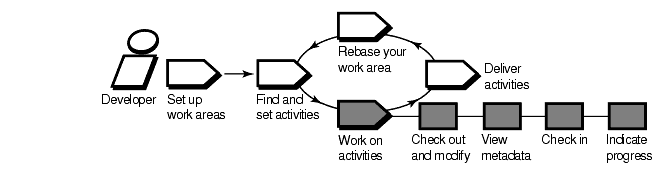
To work on activities, you check out source files, modify them, and test your modifications. You may also need to enter information in your change-request management system to communicate your progress.
Checking out a file makes it writable in your view. Then you can use any editing tool to modify it.
Metadata is information that ClearCase and ClearQuest keep about your activities and source files. While working with checked-out files (checkouts), you may want to use ClearCase and ClearQuest to view the following types of metadata:
The revision history of an element
A comparison between versions of an element
A list of versions that are checked out to your work area
When you want to keep a record of a file's current state, check it in. Any work you check in from your development view is not available to other team members until you deliver it.
Build and test the work in your development view, especially after you rebase the stream and before you deliver activities, to reduce the amount of merging needed when you deliver your work.
If your project is enabled for ClearQuest, you can indicate your progress on an activity in several ways:
Modifying information in ClearQuest
Closing an activity
Using schema-specific actions
You may need to reassign or delete an activity, regardless of whether your project is enabled for ClearQuest. For more information, see Indicating Your Progress. When you're ready to make your work available to the rest of the team, deliver it.
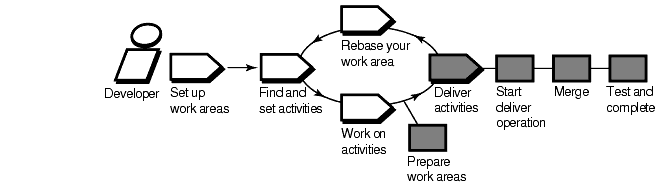
When you're ready to make one or more activities available to the project team, prepare your work areas.
If your project integrator has created a new recommended baseline since you last rebased, rebase your development area.
Find, compare, and check in the work you want to deliver.
After preparing your work areas, start the deliver operation.
As part of the deliver operation, ClearCase merges the work in your development stream with the work in the shared work area. It completes trivial merges for you. If it encounters merge conflicts, it prompts you to resolve them.
Your integration view contains the merge results. To make sure that your delivered work is compatible with the work in the shared work area, build and test the files in the integration view.
As part of building and testing, you may need to perform other operations:
Edit the checked-out versions to resolve build errors.
Check out and edit additional files.
NOTE: We recommend that you do not check in any of your changes until you are ready to complete the operation. Checking in complicates efforts to undo the deliver operation.
Update your integration view to see the work other developers have delivered since you started the deliver operation.
When you are satisfied with your test builds, complete the delivery. ClearCase checks in your modifications and changes the state of your stream.
If your project uses Rational ClearCase MultiSite to share source data with developers in other geographical locations, you may use a different method for delivering activities. If a different site is responsible for controlling your project's source data, you do the following:
Post a deliver operation to the integration stream's replica.
Notify the integrator at the site that controls your project's source data.
The integrator at the other site merges your activities to the integration stream and tests your work.

The integrator organizes delivered activities into baselines. Usually, baselines go through a cycle of testing and fixing bugs until they reach a satisfactory level of stability. When a baseline reaches this level, your integrator designates it as a recommended baseline.
To work with the set of versions in the recommended baseline, you rebase your development work area. To minimize the amount of merging necessary when you deliver activities, rebase your development work area with each new recommended baseline as it becomes available.
After you rebase, be sure to build and test the source files in your development view to verify that your undelivered activities build successfully with the versions in the baseline.
|
|
Feedback on the documentation in this site? We welcome any comments!
Copyright © 2001 by Rational Software Corporation. All rights reserved. |
