


|
|
UCM provides several locations from which to find activities:
MyToDoList and other ClearQuest queries (only for projects that are enabled for ClearQuest)
Project Explorer
ClearCase dialog boxes
If your project is enabled for the UCM-ClearQuest integration, use ClearQuest to find activities.
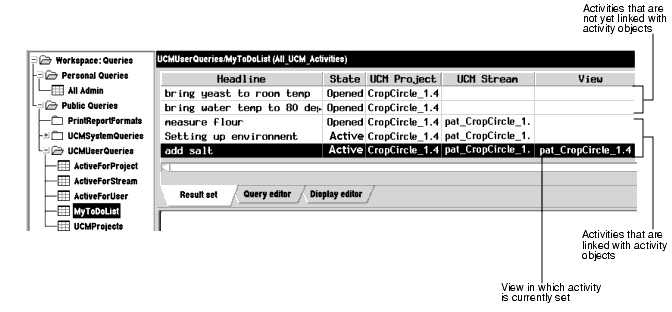
The MyToDoList query finds all UCM-enabled records that are assigned to you in ClearQuest, even if they have not been linked with activity objects or if they have been linked with activity objects in someone else's stream (Figure 14). For more information, see Queries and UCM-Enabled Record Types and ClearCase Activities.
Figure 14 Linked Activities in ClearQuest MyToDoList
Enter the following command:
In ClearQuest, in the left pane, click Workspace > Public Queries > UCMUserQueries. Then run the MyToDoList query.
ClearQuest displays the query results in the Query results pane.
To arrange the list by information displayed in a column, click the Display Editor tab and change the values in the Sort and Sort Order columns. Then rerun the MyToDoList query.
To see more information about an item on your to do list, select it. ClearQuest displays the record's details in the Record form pane.
If none of the existing queries suits your needs, you can create a new one. When creating a query to find UCM-enabled records, note the following:
To search across all UCM-enabled record types, in the Choose a Record dialog box, select All_Ucm_Activities. This selection limits your query to fields common to all UCM-enabled record types.
You cannot use a ClearQuest query to find ClearCase change-set information.
For more information about creating a query, see ClearQuest online help.
The Project Explorer arranges activities hierarchically by stream and by project (Figure 15).
Figure 15 Activities in Project Explorer

To start the Project Explorer, enter the following command:
The Project Explorer details pane shows only the ClearCase activity objects that are in the currently selected stream.
In a project that is enabled for ClearQuest, each activity in a stream is linked to a UCM-enabled record in ClearQuest. For more information, see UCM-Enabled Record Types and ClearCase Activities.
You can use cleartool lsactivity to find activity objects in streams. This section describes how to find activity objects in your development stream. For information about finding other activity objects with this command, see the lsactivity reference page in the Command Reference.
Access your development view. (For more information, see Accessing Your Development View.)
Enter the following command:
cleartool lsactivity -cview
In this example, two activities are in the stream attached to pat_1.4_cropcircle: set_up_Java_project and change_copyright_notice. The string 05-Aug.09:14:17 indicates the activity's creation date and time, the string set_up_Java_project provides the activity' s ID (used as the string in the activity-selector), and the string pat is the activity creator, and the string "set up Java project" is the headline associated with the activity.
In a project that is enabled for ClearQuest, each activity displayed is linked to a UCM-enabled record in ClearQuest. For more information, see UCM-Enabled Record Types and ClearCase Activities.
ClearCase provides a GUI, the File Browser, from which you can browse the VOB namespace and issue checkout and checkin commands for the elements in your view.
To start the File Browser, enter the following command:
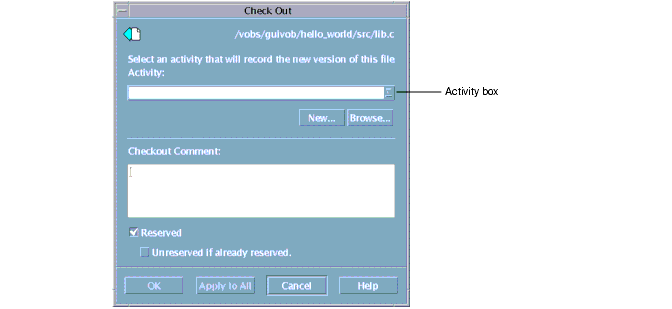
When you issue a checkout or checkin command from the File Browser, a dialog box opens for you to set an activity and optionally enter a version creation comment (Figure 16).
If the view from which you start the dialog box currently has an activity set, the Activity box shows the headline of the activity. If there is no activity set, the Activity box is blank. Use the drop-down list to select one, click New to create an activity to set (see Creating Activities), or click Browse to find an activity to set. In a project that is enabled for ClearQuest, the dialog box displays the IDs of activities found by the UCMCustomQuery1 query. (For more information, see UCMCustomQuery1.)
In projects that do not use the UCM-ClearQuest integration, the drop-down list shows the IDs of activity objects in the stream to which is attached the view from which you issued the command. Clicking Browse shows the activities that other team members have created in your stream.
Figure 16 Activities in the Check Out Dialog Box
|
|
Feedback on the documentation in this site? We welcome any comments!
Copyright © 2001 by Rational Software Corporation. All rights reserved. |
