


|
|
In a parallel development environment, the opposite of branching is merging. In the simplest scenario, merging incorporates changes on a subbranch into the main branch. However, you can merge work from any branch to any other branch. ClearCase includes automated merge facilities for handling almost any scenario.
One of the most powerful of ClearCase features is versioning of directories. Each version of a directory element catalogs a set of file elements and directory elements. In a parallel development environment, directory-level changes may occur as frequently as file-level changes. All the merge scenarios discussed in this chapter apply to both directory and file elements.
This section describes the following merge scenarios:
Merging all changes made on a single subbranch (see Scenario: Merging All Changes Made on a Subbranch)
Merging selectively from a single subbranch (see Scenario: Selective Merge from a Subbranch)
Removing the contributions of some versions on a single subbranch (see Scenario: Removing the Contributions of Some Versions)
Recording merges that occur outside ClearCase (see Recording Merges That Occur Outside ClearCase)
ClearCase also supports merging work from many branches to a single branch; this is typically a project manager's or integrator's task (see Managing Software Projects).
A merge combines the contents of two or more files or directories into a new file or directory. The ClearCase merge algorithm uses the following files during a merge (Figure 24):
Figure 24 Versions Involved in a Typical Merge
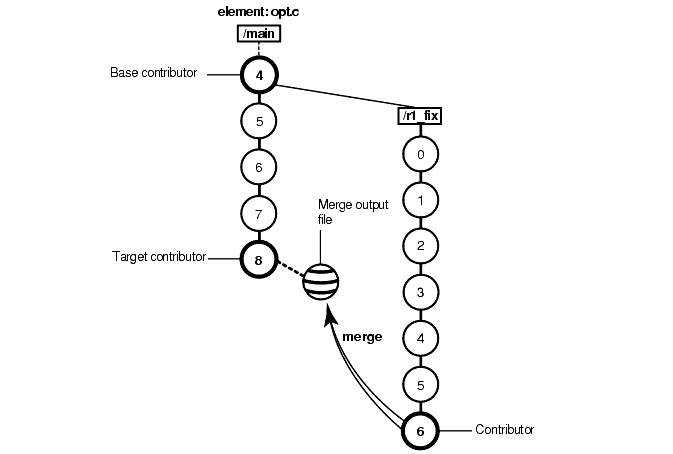
Contributors, which are typically one version from each branch you are merging. (You can merge up to 15 contributors.) You specify which versions are contributors.
The base contributor, which is typically the closest common ancestor of the contributors. (For selective merges, subtractive merges, and merges in an environment with complex branch structures, the base contributor may not be the closest common ancestor.) If all the contributors are versions of the same element, ClearCase determines which contributor is the base contributor (but you can specify a different one). For more information about determining a base contributor, see Determination of the Base Contributor.
The target contributor, which is typically the latest version on the branch that will contain the results of the merge. You determine which contributor is the target contributor.
The merge output file, which contains the results of the merge and is usually checked in as a successor to the target contributor. By default, the merge output file is the checked-out version of the target contributor, but you can choose a different file to contain the merge output.
To merge files and directories, ClearCase takes the following steps:
It identifies the base contributor.
It compares each contributor against the base contributor (Figure 25).
It copies any line that is unchanged between the base contributor and any other contributor to the merge output file.
For any line that has changed between the base contributor and one other contributor, ClearCase accepts the change in the contributor; depending on how you started the merge operation, ClearCase may copy the change to the merge output file. However, you can disable the automated merge capability for any given merge operation. If you disable this capability, you must approve each change to the merge output file.
For any line that has changed between the base contributor and more than one other contributor, ClearCase requires that you resolve the conflicting difference.
Figure 25 ClearCase Merge Algorithm
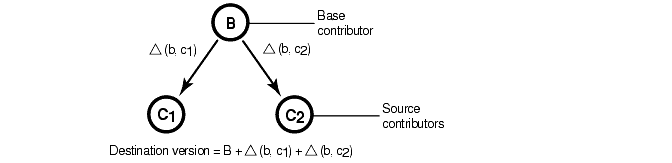
A merge is a straightforward extension of a file comparison. Instead of displaying the differences, Diff Merge analyzes them (sometimes with your help) and copies sections of text to the output file:
Sections in which there are no differences among the contributors are copied to the output file.
When one contributor differs from the base contributor, Diff Merge accepts the change and copies the contributor's modified section to the output file:
(You can turn off automatic acceptance of this kind of change.)
When two or more contributors differ from the base contributor, Diff Merge detects the conflict, and prompts you to resolve it. It displays all contributor differences and allows you to accept or reject each one.
Be sure to verify that the changes you accept produce consistent merged output. For example, after performing a merge involving file util.h, you can compare files util.h.contrib (which contains its previous contents) and the new util.h (which contains the merge output).
If all the contributors are versions of the same element, Diff Merge determines the base contributor automatically. It examines the element's version tree, which includes all the merge arrows created by previous merge operations. This examination reveals the relationships among versions from the standpoint of their contents (which versions contributed their data to this version?), rather than their creation order (which versions were created before this version?). Diff Merge selects as the base contributor the closest common ancestor in this enhanced version tree.
Figure 26 illustrates common cases of merging. If no merges have been performed in the element, the actual common ancestor (A) of the contributors (C) in the version tree is selected to be the base contributor.
Figure 26 Determination of the Base Contributor for a Merge

If the contributors are not all versions of the same element, there is no common ancestor (or other base contributor). In this case, ClearCase turns off automated merging, and you must resolve all discrepancies among the contributors.
Under the following conditions, the merge is recorded by creating one or more merge arrows (hyperlinks of type Merge):
All contributor files must be versions of the same file element.
One of the contributors must be a checked-out version, and you must specify this version as the target to be overwritten with the merge output (the -to option in the merge command). (Alternatively, you can optionally create merge arrows without performing a merge; in this case, you do not need to check out any of the contributors.)
You must not perform the merge but suppress creation of merge arrows.
You must not use any of these options: selective merge, subtractive merge, or base contributor specification (the -insert, -delete, and -base options in the merge command).
Diff Merge draws an arrow from each contributor version (except the base contributor) to the target version. You can see merge arrows with the Version Tree Browser.
The find and lsvtree -merge commands can locate versions with Merge hyperlinks. The describe command lists all of a version's hyperlinks, including merge arrows:
cleartool describe util.h@@/main/3
version "util.h@@/main/3"
.
.
.
Hyperlinks:
Merge@278@/vob_3 /vob_3/src/util.h@@/main/rel2_bugfix/1
-> /vob_3/src/util.h@@/main/3
Each version of a ClearCase directory element contains the names of certain file elements, directory elements, and VOB symbolic links.Diff Merge can process two or more versions of the same directory element, producing a directory version that reflects the contents of all contributors. The algorithm is similar to that for a file merge. Diff Merge prompts for user interaction only when two or more of the contributors are in conflict.
One of the directory versions-the merge target-must be checked out. (Typically, it is the version in your view.) Diff Merge updates the checked-out directory by adding, removing, and changing names of elements and links.
NOTE: A directory merge does not leave behind a .contrib file, with the pre-merge contents of the target version.
We recommend that you use this procedure when merging directories:
Ensure that all contributor versions of the directory are checked in.
Check out the target version of the directory.
Perform the directory merge immediately, without making any other changes to the checked-out version.
If you follow this procedure, it easier to determine exactly what the merge accomplished. Enter a diff -predecessor command on the checked-out version, which has just been updated by merge.
ClearCase implements directory merges using VOB hard links. You can use the ln and rmname commands to perform full or partial merges manually. See the ln and rmname reference pages in the Command Reference.
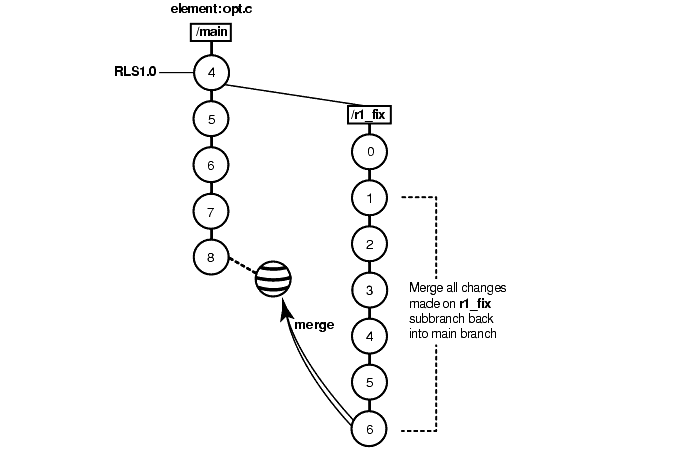
Merging all changes made on a subbranch is the simplest and most common scenario (Figure 27).
Bug fixes for an element named opt.c are being made on branch r1_fix, which was created at the baseline version RLS1.0 (\main\4). Now, all the changes made on the subbranch are to be incorporated into main, where a few new versions have been created in the meantime.
Merging the changes from the r1_fix branch involves the following tasks:
Start a dynamic view or change directories to a snapshot view. The view must select the target version, which in Figure 27 is opt.c@@\main\8.
If the target version is checked out to your view for other revisions, create a pre-merge checkpoint by checking it in. To make it easier to find this checkpoint, consider labeling the version.
Use the Merge Manager to find elements with versions on a specific subbranch and automatically merge any nonconflicting differences. For example, in Figure 27, you find elements with versions on the r1_fix subbranch.
In your project, several elements might have versions on the r1_fix branch. With the Merge Manager, you can choose for which elements you merge changes from one branch to another.
Figure 27 Merging All Changes from a Subbranch
Use Diff Merge to resolve any conflicting differences between merge contributors.
Test the merge results in the view you start in Step #1. Then check in the target version (which contains the results of the merge).
For detailed information about completing this task, see ClearCase online help.
In the selective merge scenario, the project manager wants to incorporate into new development several lines of code that were added in version \main\r1_fix\4 (Figure 28).
Figure 28 Selective Merge from a Subbranch

It's critical that you merge only the lines of code as written in this version: it was used and verified to fix a specific bug that prevents further development on the new project.
Selective merges can be tricky: versions you exclude as contributors to the merge may contain needed revisions. For example, if the function you added in \main\r1_fix\4 relies on a variable definition that was added in \main\r1_fix\2, you must include version 2 in the merge.
You can also specify a single range of consecutive versions to contribute to the merge. For example, if you need the variable definitions added in \main\r1_fix\2 as well as the code added in \main\r1_fix\4, you can include versions 2 through 4 in the merge.
Merging selective versions from the r1_fix branch involves the following tasks:
Start a dynamic view or change directories to a snapshot view. The view must select the target version, which in Figure 28 is opt.c@@\main\8.
If the target version is checked out to your view for other revisions, create a pre-merge checkpoint by checking it in.
To determine which versions contain changes that you want to merge to the target version, use the Version Tree Browser and the History Browser. In a snapshot view, use either the cleartool get command or Send To command in the Version Tree Browser or History Browser to see the contents of versions not loaded into your view. (For information about opening a version not currently in your view, see ClearCase online help.)
To start the merge, check out the target version, and then issue the cleartool merge command with the -insert -graphical arguments. (You cannot start a selective merge from Diff Merge.)
For example, the following commands merge only the changes in version 4 on the r1_fix branch:
cleartool checkout opt.c
cleartool merge -graphical -to opt.c -insert -version \main\4
These commands merge only the changes in versions 2 through 4 on the r1_fix branch:
cleartool checkout opt.c
cleartool merge -graphical -to opt.c -insert -version \main\r1_fix\2 \main\4
In Diff Merge, complete the merge. Then save the results and exit. For information on using Diff Merge, refer to the online help.
Test the merge results in the view you start in Step #1. Then check in the target version.
NOTE: In a selective merge, ClearCase does not create a merge arrow. A merge arrow indicates that all of a version's data has been merged, not parts of it.
For detailed information about completing this task, see the merge and version_selector reference pages in the Command Reference or ClearCase online help.
The project manager has decided that a new feature, implemented in versions 14 through 16 on the main branch, will not be included in the product. You must perform a subtractive merge to remove the changes made in those versions (Figure 29).
Figure 29 Removing the Contributions of Some Versions

A subtractive merge is the opposite of a selective merge: it removes from the checked-out version the changes made in one or more of its predecessors. Performing a subtractive merge involves the following tasks:
Start a dynamic view or change directories to a snapshot view. The view must select the branch from which you want to remove revisions.
If the target version is checked out to your view for other revisions, create a pre-merge checkpoint by checking it in. In Figure 29, the target version is opt.c@@\main\18.
To determine which versions contain changes you want to remove, use the Version Tree Browser and the History Browser. From a snapshot view, use either the cleartool get command or the Send To command in the Version Tree Browser or History Browser to see the contents of versions not loaded into your view. (For information about opening a version not currently in your view, see ClearCase online help.)
To perform the merge, check out the target version, and then use the cleartool merge command with the -delete -graphical arguments. (You cannot start a subtractive merge from Diff Merge.)
For example, the following commands remove revisions to versions 14 through 16 on the main branch:
cleartool checkout opt.c
cleartool merge -graphical -to opt.c -delete -version \main\14 \main\16
In Diff Merge, complete the merge. Then save the results and exit. For information on using Diff Merge, refer to online help.
Test the merge results in your view. Then check in the target version (which contains the results of the merge).
NOTE: In a subtractive merge, ClearCase does not create a merge arrow. A merge arrow indicates that data has been merged, not removed.
For detailed information about completing this task, see the merge and version_selector reference pages in the Command Reference or ClearCase online help.
You can merge versions of an element manually or with any available analysis and editing tools. To update an element's version tree with a merge that occurs outside ClearCase, check out the target version, perform the merge with your own tools, and check it back in. Then record the merge by drawing a merge arrow from the contributors to the new version that contains the result of the merge. After you've drawn the merge arrow, your merge is indistinguishable from one performed with ClearCase tools.
For example, use the following commands to merge a version of nextwhat.c on the enhance branch to the branch currently selected by your view:
cleartool checkout nextwhat.c
Checkout comments for "nextwhat.c":
merge enhance branch
.
Checked out "nextwhat.c" from version "\main\1".
<use your own tools to merge data into checked-out version>
cleartool merge -to nextwhat.c -ndata -version ...\enhance\LATEST
Recorded merge of "nextwhat.c".
The -ndata option suppresses the merge but creates merge arrows as if ClearCase had merged the versions.
For detailed information about completing this task, see the merge and version_selector reference pages in the Command Reference or ClearCase online help.
|
|
Feedback on the documentation in this site? We welcome any comments!
Copyright © 2001 by Rational Software Corporation. All rights reserved. |
