


|
|
You can start an update operation for
The entire view
At least one file or at least one directory tree
Update the entire view periodically to make sure you have the correct version of all loaded files and directories.
In ClearCase Explorer, select the root directory of the snapshot view.
Right-click to display the shortcut menu. Then click Update View
To change default behavior for the update operation, click the Advanced tab in the Start Update dialog box and change the currently selected options. Any changes you make become the defaults for subsequent updates.
If you do not change options on the Advanced tab, the defaults for the update operation are as follows:
For any file or directory that is neither checked out nor hijacked, if the version the config spec selects is different from the version in the view, overwrite it with the version from the VOB.
Leave all hijacked files in the view with their current modifications.
For any files or directories modified by the update operation, use the time-stamp option specified when the view was first created.
Click OK to start the update.
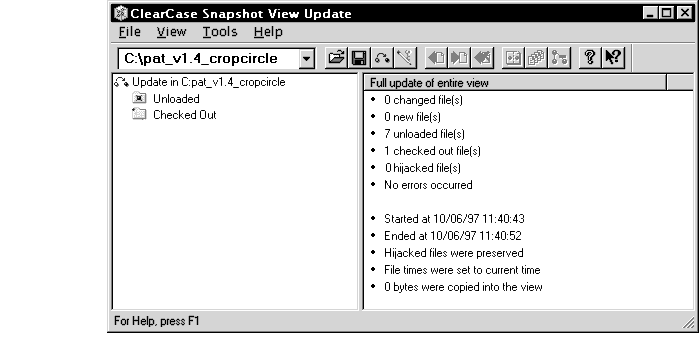
Rational ClearCase begins the update procedure and displays a progress indicator. When the update is complete, the Snapshot View Update window displays a categorized list of the actions taken to update the view (Figure 17). For a description of this window, see the online help.
Figure 17 The Snapshot View Update Window
To save time, you can update individual files or directories. (Rational ClearCase updates directories recursively.) Updating only specific parts of your view may eventually cause the view to contain an inconsistent set of versions.
In ClearCase Explorer, select the files or directories you want to update.
Right-click to display the shortcut menu; then click Update.
ClearCase begins the update procedure and displays a summary of its progress.
NOTE: You cannot update a checked-out file. To undo changes to a checked-out file and start over with the version in the VOB, cancel the checkout. See Canceling Checkouts.
If you know that the files you want to update share a common attribute, such as a similar modification date, you can use the Search command in ClearCase Explorer to find the set of files. Then, you can update the files from the Find dialog box.
In ClearCase Explorer, right-click in the Folder pane and click Search.
In the Find: All Files dialog box, enter the path to the view or to a specific directory in the view in the Look In box.
Use the Date Modified and Advanced tabs to specify search criteria.
Click Find Now.
The Find: All Files dialog box expands to display the files and directories it finds.
Select the files you want to update. On the shortcut menu, click Update.
|
|
Feedback on the documentation in this site? We welcome any comments!
Copyright © 2001 by Rational Software Corporation. All rights reserved. |
