


|
|
When you're connected to the network, use the Update Tool for the following tasks:
Determine how to handle hijacked files
Update the view
Handling hijacked files involves the following tasks:
Finding hijacked files
Comparing a hijacked file to the version in the VOB
Checking out a hijacked file
Merging changes to a hijacked file
Undoing a hijack
Choosing other ways to handle hijacked files
In ClearCase Explorer, right-click the root directory of the snapshot view.
On the shortcut menu, click Find Modified Files.
Select Display results when closed and quit the Modified File Search Complete window.
If any hijacked files are in your view, the ClearCase Snapshot View Update window displays a folder in the left pane titled Hijacked (Figure 39). Select No for the option asking whether you want to check out the hijacked files now.
Figure 39 Hijacked Files in the Results Window

You can use the Diff Merge tool to see how the hijacked file differs from the checked-in version of the file:
In the right pane of the ClearCase Snapshot View Update window, right-click a hijacked file.
On the shortcut menu, click Compare with Original Version. For information on using the Diff Merge tool, see the online help.
To keep the modifications in a hijacked file, check out the file:
In the right pane of the ClearCase Snapshot View Update window, right-click a hijacked file.
On the shortcut menu, click Check Out.
ClearCase treats a checked-out hijacked file as it does any other checkout.
When you're ready, you can check in the file.
If you're working with a shared set of versions and someone has checked in a newer version of the file while it was hijacked in your view (Figure 40), ClearCase prevents you from checking in the file.
Figure 40 Hijacked Version May Not Be the Latest Version
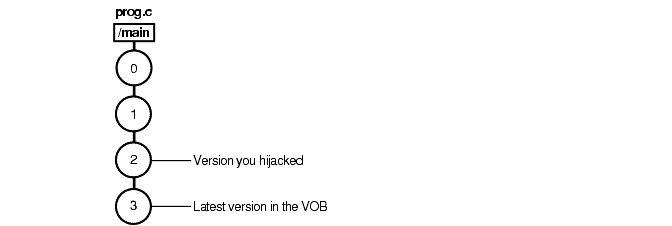
You have to merge the latest version in the VOB with the checked-out file before ClearCase allows the checkin.
When you issue the Check In command for a nonlatest version, ClearCase opens the dialog box to ask whether you want to merge the file now. If you choose to merge, ClearCase attempts to merge automatically, starting the Diff Merge tool if it needs your input to complete the merge. For information about using Diff Merge, see ClearCase online help. After the merge, ClearCase prompts you to check in the file.
If, for specific hijacked files, you want to discard your changes and get a fresh copy of the version from the VOB, you can undo the hijack.
In the right pane of the ClearCase Snapshot View Update window, select one or more hijacked files.
Right-click the selected files, and, on the shortcut menu, click Undo Hijacked File.
ClearCase overwrites the hijacked file with the version that was loaded in the view. If you want to overwrite hijacked files with the versions the config spec selects in the VOB, see Step #3 in Updating the View.
To keep track of file modifications in a snapshot view, ClearCase stores a loaded file's size and last-modified time stamp (as reported by the Windows file system). ClearCase updates these values each time you check out a file, check in a file, or load a new version into the view.
To determine whether a file is hijacked, ClearCase compares the current size and last-modified time stamp of a non-checked-out file with the size and time stamp recorded in the view database. If either value is different from the value in the view database, ClearCase considers the file hijacked.
Changing a non-checked-out file's read-only attribute alone does not necessarily mean ClearCase considers the file hijacked.
While updating the view, you can handle hijacked files in any of the following ways:
Leave hijacked files in place
Rename the hijacked files and load the version from the VOB
Overwrite hijacked files with the version the config selects in the VOB
See Updating the View for more information.
In ClearCase Explorer, select the snapshot view's root directory.
Right-click to display the shortcut menu and click Update View.
To configure the Update Tool for handling hijacked files, in the Start Update dialog box click the Advanced tab and select a method for handling the remaining hijacked files. You have these choices:
Leave hijacked files in place
Rename the hijacked files and load the selected version from the VOB
Delete hijacked files and load the selected version from the VOB
To start the update, click OK.
|
|
Feedback on the documentation in this site? We welcome any comments!
Copyright © 2001 by Rational Software Corporation. All rights reserved. |
