


|
|
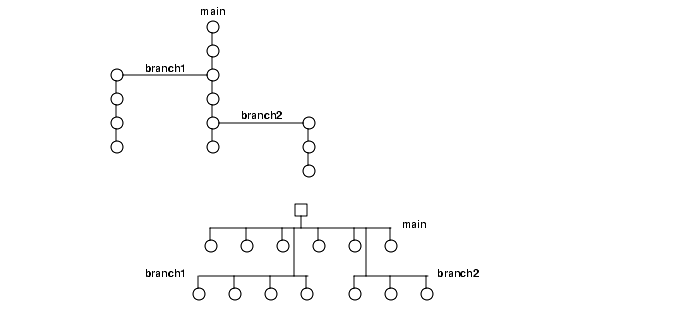
An element's version tree has the same form as a standard directory tree (Figure 6), which compares components of the version tree to components of a directory tree in extended namespace.
As a component of the version tree, the element is the root of the directory tree in the extended namespace. The element itself appears to be a directory, which contains a single subdirectory, corresponding to the main branch. (It can also contain some version labels.)
A branch in the version tree appears as a subdirectory in the extended namespace. As a directory, each branch can contain files (individual versions and version labels), directories (subbranches), and links (version labels).
A version in the version tree is a leaf name of the directory tree in the extended namespace. Each version of an element is a leaf of the directory tree. For a file element, the leaf contains text lines or binary data. For a directory element, the leaf contains a directory structure.
Figure 6 Version Tree and Extended Namespace
Accordingly, any location within an element's version tree can be identified by a pathname in this extended namespace:
sort.c@@ | (specifies an element) |
sort.c@@/main | (specifies a branch) |
sort.c@@/main/branch1 | (specifies a branch) |
sort.c@@/main/branch1/2 | (specifies a version) |
doctn/.@@/main/3 | (special case: extra component is required in VOB's top-level directory) |
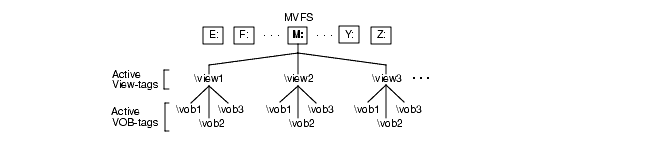
All ClearCase data is accessed through the MVFS, which, by default, occupies drive M: on each ClearCase host. Each active view has a name called a view-tag which appears in the root directory of M. Each active VOB has a path called a VOB-tag which appears as a subdirectory under each active view, as shown in Figure 7.
Figure 7 ClearCase MVFS Namespace
From drive M, you can access VOBs using pathnames of the following form:
\view-tag\vob-tag\pname-in-vob
Typically, however, you do not work directly on drive M, but in the view root directory accessed by a shortcut in ClearCase Explorer. In Windows Explorer, you typically assign a drive to a view.
Figure 8 shows how the MVFS namespace looks from a drive assigned to a view in the ClearCase Explorer view shortcut, with the net use command, or by clicking Tools > Map Network Drive in Windows Explorer.
Figure 8 The MVFS Namespace from a Drive

From any drive, you can specify view-extended pathnames of the following form:
M:\view-tag\vob-tag\pname-in-vob
If you move to drive M, you are in view-extended namespace, and all VOB access is by view-extended pathnames.
To eliminate any confusion that may result from unintentional use of view-extended pathnames when you are working at a command prompt, we recommend that you work from a drive letter assigned to a view. This permits you to use VOB pathnames of the following form:
drive-letter:\vob-tag\vob-object-pname
in both cleartool and standard operating system commands. Furthermore, this approach is required if you want to share DOs between views at build time.
|
|
Feedback on the documentation in this site? We welcome any comments!
Copyright © 2001 by Rational Software Corporation. All rights reserved. |
