


|
|
Rational ClearCase Explorer is a developer's tool that supplies a coherent, adaptable, and customizable interface to your software environment, providing:
Organization of ClearCase developer tools
Access to the ClearCase environment
Flexible navigation mechanisms
Using a Windows Explorer-like interface with dockable panes, ClearCase Explorer supports shortcuts to ClearCase tools, to ClearCase documentation, and to ClearCase objects.
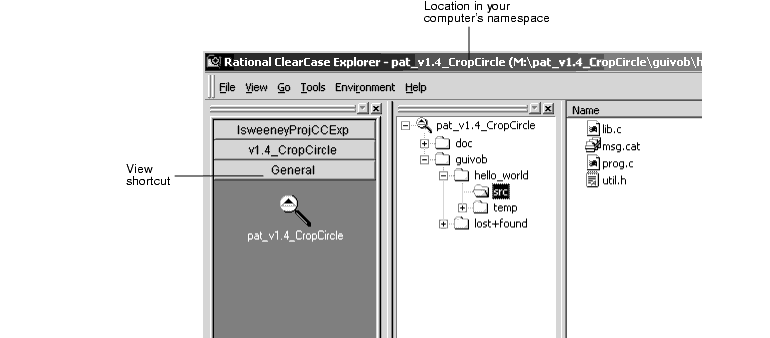
In its initial state, the ClearCase Explorer window has three panes (Figure 5). The leftmost pane, called the Shortcut pane, is dockable and provides the Views tab to access ClearCase objects and the Toolbox tab to start ClearCase tools and configurable user tools. In the Toolbox page, rectangles at the top and bottom provide a paging mechanism to access hidden tool icons.
The middle pane, called the Folder pane, is dockable and contains the tree control that displays the directory hierarchy for a given view.
The rightmost pane, called the Details pane, is not dockable and contains the list control that displays the contents of a selected folder.
An optional pane, called the Information pane, is not dockable. It provides context-dependent ClearCase state and processing information and access to introductory online help topics.
Figure 5 A Base ClearCase View From ClearCase Explorer
ClearCase Explorer supports access to tools by clicking a tab in the Shortcut pane or by right-clicking in the Folder pane or Details pane.
In the Shortcut pane, ClearCase Explorer provides the Toolbox tab for finding and running both ClearCase tools and user-selectable tools and for accessing documentation. Tools are organized by tool groups divided into two pages, UCM for project-related tools and Base ClearCase for tools not related to UCM projects. The tools provided by default are classified as developer tools. Other ClearCase tools classified as project manager or administrator tools are accessible in the Windows Taskbar by clicking Start > Programs > Rational ClearCase Administration.
The Toolbox tab also presents a Getting Started page that provides access to online help information, online versions of printed documentation, and tutorials.
ClearCase Explorer provides two types of shortcut menus:
For the ClearCase integration in the Folder pane and in the Details pane
For customizing the Shortcut pane
If you right-click in the Folder pane or the Details pane, a context-sensitive shortcut menu appears offering access to file handling operations and ClearCase functions. The shortcut menu commands are activated based on the state of the item you select. You can also add tool shortcuts to your Send To folder to access your favorite integrated development environment (IDE), your favorite editor, or a command shell. Any tool shortcuts newly added to your Send To folder appear on the shortcut menu Send To command the next time ClearCase Explorer starts.
If you right-click in the Shortcut pane, another type of context-sensitive shortcut menu appears enabling you to add your own tool groups and tool shortcut icons. In the Toolbox tab, the shortcut menu commands enable you to add shortcuts to your favorite tools and URLs and add page controls for your own tools. In the Views tab, with the shortcut menu, you can add and remove view shortcuts and add pages to organize view shortcut icons. And you can perform some ClearCase operations on views. The ways to do this are described in the online help.
A tool started from the Shortcut pane or from a shortcut menu command can have view context, if applicable. For example, starting the History Browser shows the event log for the currently selected element. If you start a project file (for example, a .DSW or a .VPB file) from within ClearCase Explorer, you can perform ClearCase functions from within the IDE. As you are working with ClearCase objects within the IDE, you can refresh the ClearCase Explorer display to see the state change of the elements in the Details pane.
Through the Views tab in the Shortcut pane, ClearCase Explorer provides means for accessing and navigating among ClearCase views.
You access a non-UCM view by clicking the General page in the Views shortcut pane. In the General page are icons for views that you own.
Clicking a view icon activates (starts) the view. ClearCase Explorer displays in the Folder pane a folder hierarchy rooted at the view-tag, and, as subfolders under the view, the contents of the view. For a dynamic view, the subfolders are for all mounted VOBs. For a snapshot view, the subfolders are for all VOBs rooted at the view. By default, in a snapshot view, only loaded elements are visible. You can change this default so that unloaded elements are displayed. The title bar shows the currently selected path within the view.
As you click a subfolder, the subordinate elements display in the Details pane showing ClearCase details about the items, element and version information. In the Details pane, elements possessing unique characteristics (like a file under version control or an eclipsed version) display with visual characteristics familiar in other ClearCase tools.
As you move within the Folder pane from one location to another, ClearCase Explorer stores the path for each of your visits. To return to a previously visited location, click File and, from the numbered list of pathnames (ordered most recently visited to first visited), select the pathname.
The tree control provided in the Folder pane provides navigation to ClearCase objects in a view.
Each view is represented as a top-level folder in the Folder pane. Expanding the subfolders provides details about the ClearCase objects accessible in the view. Selecting a folder displays fields of file system and ClearCase information in the Details pane. You can customize which fields are displayed. Because gathering some data for display takes more processing time and affects tool performance, you may not want to display all possible fields. You can also sort the data in the columns using standards Windows techniques. Any customizations you make are persistent across invocations of the tool.
If you start ClearCase Explorer on a computer without any projects or views defined, the Shortcut pane under the Views tab contains only the General page. If you join a project, the tool creates a page under the Views tab with the project name.
If you create a view associated with a project from within ClearCase Explorer, the tool creates a shortcut for that view on the page for that project. If you introduce into ClearCase Explorer a view that is associated with a project that does not have a page, the tool creates a shortcut bar for that page.
For any view that you own that is not associated with a project, the tool adds to the General page an icon with the view-tag. (There is no way to tell ClearCase Explorer not to create an icon for a view that you own.) When ClearCase Explorer exits, it stores, as the default view, information about the view that you last worked in. When ClearCase Explorer starts again, it restores the default view.
Use the View menu to adjust the window appearance. Click the check boxes to toggle the display of window panes and bars. Click the Refresh commands to have ClearCase Explorer examine the system for the latest state information and re-display the information in the Folder pane and Details pane.
If you remove a view that you own, its shortcut in ClearCase Explorer is removed. If you remove all the views for a project, its page in ClearCase Explorer is removed. To remove a shortcut for a view that you do not own, remove its view-tag from the registry.
For new users, ClearCase Explorer offers an Information pane whose contents depend on the context of your work. The Information pane presents workflow help topics that outline the stages required while working in different ClearCase environments.
As you work with ClearCase objects, the Information pane displays contextual information about a selected element. Included is brief information about a selected element and its current state. For example, if you select a file, the Information pane shows two columns, one listing the details of your selection and the other offering, under the heading About, informative text or, under the heading Uses, tips on some of the operations that you can perform with the selected object.
In a view context in ClearCase Explorer, you can work in the Details pane where you can create a new file or directory. If you select the newly created file or directory, the Information pane tells you that you can add it to source control. If you add the file or directory to source control, the Information pane keeps the item selected and tells you that you can check it out. If you are working within a UCM project, you can select an activity; or, if you are checking an element out, you can create a new activity. If the project is enabled for ClearQuest, you can select a change request.
After you become used to the environment, you can hide the Information pane to reclaim the screen area.
|
|
Feedback on the documentation in this site? We welcome any comments!
Copyright © 2001 by Rational Software Corporation. All rights reserved. |
